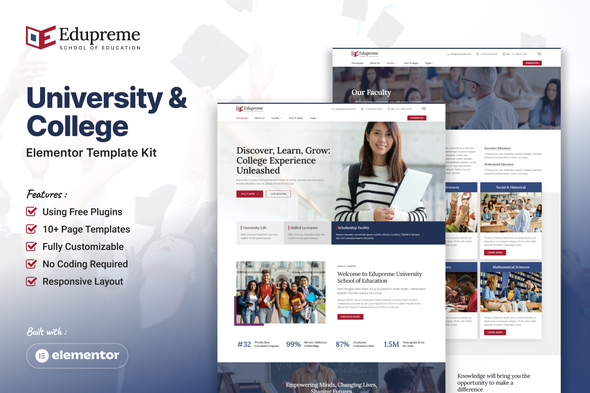
Edupreme - University & College Elementor Template Kit
Edupreme is an Elementor Template Kit designed for university and college websites, delivering a minimalist, professional aesthetic with fast loading and responsive design. It emphasizes easy customization and a streamlined online educational experience.
Features
- 12+ pre-built templates ready to use for rapid site assembly
- Cross Browser Compatible ensures consistent appearance across major browsers
- Using Free Plugins (Elementor Pro is not required) to minimize costs
- 100% Fully Responsive & Mobile-friendly design
- Clean and Modern Design Style with a professional look
- Customize fonts and colors in one place (Global Kit Style) for unified branding
Templates in Zip
- Header Offcanvas
- Header
- Footer
- Contact Form
- Subscription Form
- Faculty Detail
- Faculty
- About Us
- University Life
- How To Apply
- Contact Us
- Single Post
- 404 Page
- Blog
- Homepage
Global Kit Styles
Global Kit Styles provide centralized control for branding elements, allowing you to manage fonts and colors in one place for consistent site-wide styling.
Required Plugins
- Elementor Website Builder
- Envato Elements
- Elementskit Lite
- Metform
How to Use Template Kits
This is not a WordPress Theme. Template kits contain the design data for Elementor only and are installed using the envato Elements plugin for WordPress or directly through Elementor.
- Download your kit file from Envato and do not unzip it. If you use Safari browser you may need to ensure “Open safe files after downloading” is disabled in the browser preferences.
- Go to Settings > Permalinks and ensure Post Name is selected
- Go to Appearance > Themes > Add New and ensure Hello Elementor is installed and activated. This will prompt you to install Elementor if you haven’t already.
- Go to Plugins and ensure Elementor and Envato Elements are installed and at the latest version. If your kit requires Elementor Pro, it must be installed now and connected to your account.
- Go to Elements > Installed Kits and click Upload Template Kit Zip (or click your kit to view it)
- Check for the orange banner at the top and click Install Requirements to load any plugins the kit uses.
- Click import on the Global Kit Styles first. This will setup the site settings.
- Click Import on one template at a time in the order shown. These are stored in Elementor under Templates > Saved Templates and are re-used from here.
Helpful reference: Envato preview
Creating pages: Go to Pages and create a new page and click Edit with Elementor. Use the gear icon to view page settings and choose Elementor Full Width and hide page title. Use the gray folder icon to access My Templates tab and then Import the page you’d like to customize. The home page is set under Settings > Reading by selecting Static Front Page. If you have Elementor Pro, headers and footers are customized under Templates > Theme Builder.
For a detailed guide, see the Envato Help article: How to Use the Envato Elements WordPress Plugin.
For further support, go to Elementor > Get Help in WordPress menu.
How to Import Metforms
- Import the metform block templates
- Import the page template where the form appears and right-click to enable the Navigator
- Locate and select the Metform widget and click Edit Form. Choose New, then Edit Form. The builder will appear
- Click ‘Add Template’ grey folder icon
- Click ‘My Templates’ tab
- Choose your imported metform template, then click ‘Insert’ (click No for page settings)
- Once the template is loaded, make any desired customizations and click ‘Update & Close’ The form will appear in the template
- Click Update
Setup Global Header and Footer in ElementsKit
- Import the header and footer template
- Go to ElementsKit > Header Footer and click Add New (if prompted with a wizard, you may click Next through it without taking any action)
- Title the header, leave Entire Site selected and toggle Activation to On
- Click the gray Edit Content button to load the builder
- Click the gray folder icon and select the header template to import, select your menu in the nav element and click Update
- Repeat for Footer
Image License
This Template Kit uses demo images from Envato Elements. You will need to license these images from Envato Elements to use them on your website, or you can substitute them with your own.
Envato Elements collection: QWCRDV8TH9
Note on Refunds
Note: refund due to erroneous purchases or change of mind cannot be accepted.
The information on this website is sourced from the
ThemeForest product page
.