Lockey – Locksmith and Key Maker Service Elementor Template Kit
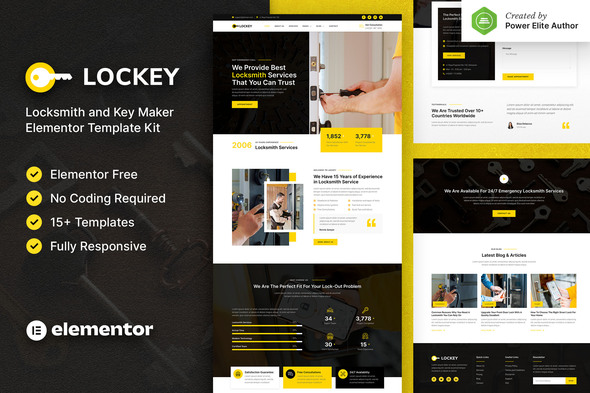
Lockey is a modern and clean Elementor Template Kit designed to help you quickly build a professional WordPress site for locksmith services and related offerings such as key making, lock repair, key duplication, smart locks, and home security. It emphasizes a responsive, retina-ready design with easy customization through Elementor, without coding.
What Lockey is
Lockey provides a complete Elementor-powered template kit that is optimized for use with the free Hello Elementor theme. It is not a WordPress theme itself, but a collection of page content and templates you can deploy with Elementor to create a locksmith-focused website.
Key Features
- Modern & Clean Design
- 15+ Ready to use templates
- Fully Responsive Layout
- Retina Ready
- Fully Customizable
- Cross Browser Compatibility: Chrome, Firefox, Safari, Opera
Templates Included
- Home
- About Us
- Services
- Pricing
- Team
- FAQ
- Blog
- Single Blog
- Contact
- MetForm Appointment
- MetForm Contact
- 404 Page
- Header
- Footer
- Global Theme Style
Required Plugins
- Elementor
- Jeg Elementor Kit
- MetForm
How to Use Template Kits
- Install and Activate the “Envato Elements” plugin from Plugins > Add New in WordPress
- Download your kit file and Do not unzip
- Go to Elements > Installed Kits and click the Upload Template Kit button. You may also import automatically by clicking Connect Account to link your Elements subscription, then import under Elements > Template Kits.
- Check for the orange banner at the top and click Install Requirements to load any plugins the kit uses
- Click import on the Global Kit Styles first
- Click Import on one template at a time. These are stored in Elementor under Templates > Saved Templates.
- Go to Pages and create a new page and click Edit with Elementor
- Click the gear icon at lower-left of the builder to view page settings and choose Elementor Full Width and hide page title
- Click the gray folder icon to access My Templates tab and then Import the page you’d like to customize.
- If you have Elementor Pro, headers and footers may be customized under Theme Builder.
- See the Detailed Guide
- For further support, go to Elementor > Get Help in WordPress menu.
How to import Metforms and content blocks
- Import the metform block templates
- Import the page template where the form appears and right-click to enable the Navigator
- Locate and select the Metform widget and click Edit Form. Choose New, then Edit Form. The builder will appear
- Click ‘Add Template’ grey folder icon.
- Click ‘My Templates’ tab.
- Choose your imported metform template, then click ‘Insert’ (click No for page settings).
- Once the template is loaded, make any desired customizations and click ‘Update & Close’ The form will appear in the template
- Click Update
Setup Global Header and Footer in Header Footer & Blocks plugin
- Install the Header & Footer Builder for Elementor plugin
- Import the header and footer template
- Go to Appearance > Header Footer and click Add New button
- Give it a title and select Header, Display on Entire Site and click Publish
- Click Edit with Elementor
- Click the gray folder icon to access My Templates tab and select the header template to import and Update.
- Repeat for Footer
Notes on Demo Images
This Template Kit uses demo images from Envato Elements. You will need to license these images from Envato Elements to use them on your website, or you can substitute them with your own.
The information on this website is sourced from the
ThemeForest product page
.