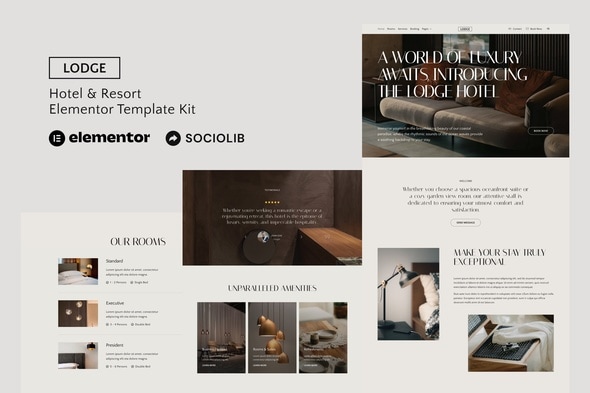
Lodge - Hotel & Resort Elementor Template Kit
Lodge is an Elementor Template Kit that enables fast, code-free creation of hotel and resort websites using WordPress and the Elementor Page Builder. It offers a modern design, drag-and-drop customization, and templates for key site sections.
What Lodge Template Kit Includes
This kit is not a WordPress theme; Template Kits contain page content for the Elementor page builder. It is optimized for the free Hello Elementor theme but can be used with most Elementor-supported themes.
Key Features
- 11+ Templates
- True no-code customization with drag and drop visual builder
- Customize fonts and colors in one place or fine-tune on individual elements
- Clean and Minimal Design
- Fast-loading
- Works with most Elementor themes
- Responsive Design
Templates Included
- Home
- Rooms
- Services
- About
- Features
- Booking
- Single Service
- Booking Form
- Off-Canvas Menu
- Header
- Footer
- Global Style
Included Plugins (installed with kit)
How to Use Template Kits
- Install and Activate the “Envato Elements” plugin from Plugins > Add New in WordPress. You do NOT need an Envato Elements subscription to use this plugin to install kits.
- Download your kit file and Do not unzip it! If you have Safari, ensure “open safe files after downloading” is not enabled in preferences.
- Go to Elements > Installed Kits and click the Upload Template Kit button. You may also import automatically by clicking Connect Account to link your Elements subscription, then import under Elements > Template Kits.
- Check for the orange banner at the top and click Install Requirements to load any plugins the kit uses
- Click import on the Global Kit Styles first
- Click Import on one template at a time. These are stored in Elementor under Templates > Saved Templates.
- Go to Pages and create a new page and click Edit with Elementor
- Click the gear icon at lower-left of the builder to view page settings and choose Elementor Full Width and hide page title
- Click the gray folder icon to access My Templates tab and then Import the page you’d like to customize.
- If you have Elementor Pro, headers and footers may be customized under Theme Builder.
- Detailed Guide:
How to use the Envato Elements WordPress Plugin
- For further support, go to Elementor > Get Help in WordPress menu.
Setup Global Header and Footer with ElementsKit Lite
- Setup Global Header and Footer in ElementsKit Lite Header Footer Builder Plugin
- Import the header and footer template
- Go to ElementsKit Lite > Header Footer and click Add New button
- Give it a title and select Header, Display on Entire Site and click Publish
- Click Edit with Elementor
- Click the gray folder icon to access My Templates tab and select the header template to import and Update.
- Repeat for Footer
Import Metforms
- Import the metform block templates
- Import the page template where the form appears and right-click to enable the Navigator
- Locate and select the Metform widget and click Edit Form. Choose New, then Edit Form. The builder will appear
- Click ‘Add Template’ grey folder icon.
- Click ‘My Templates’ tab.
- Choose your imported metform template, then click ‘Insert’ (click No for page settings).
- Once the template is loaded, make any desired customizations and click ‘Update & Close’ The form will appear in the template
- Click Update
Images and Licensing
This Template Kit uses demo images from Envato Elements and Unsplash. You will need to license these images from Envato Elements to use them on your website, or you can substitute them with your own.
Envato Elements collection.
The information on this website is sourced from the
ThemeForest product page
.