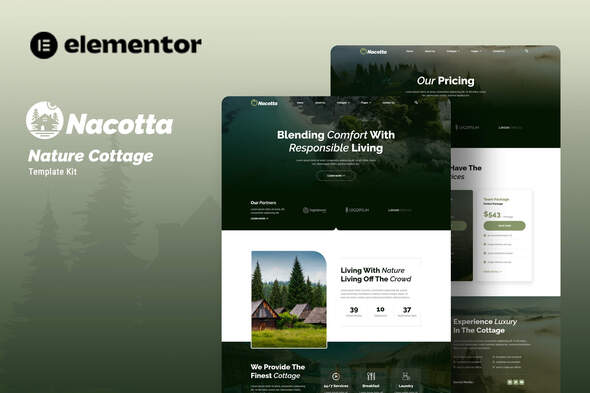
Nacotta - Nature Cottage Elementor Template Kit
Nacotta is an Elementor template kit designed for nature-inspired cottages and outdoor-themed websites, offering multiple pages and straightforward setup. It relies on free elements and provides a detailed guide for installation, import, and customization.
Templates Included
- Home
- About Us
- Cottages
- Single Cottages
- Pricing
- Activities
- FAQs
- Blog
- Single Blog
- 404
- Contact Us
Templates
The kit provides a collection of ready-to-use templates to cover key sections of nature and cottage-focused websites, enabling quick setup and consistent styling across pages.
Plugin Dependencies
- Elementor
- ElementsKit Lite
- Jeg Elementor Kit
- Metform
- Header, Footer & Blocks Template
How to Use Template Kits
- Download your kit file from Envato and do not unzip it. If you use Safari, you may need to disable “Open safe files after downloading” in browser preferences.
- Go to Settings > Permalinks and ensure Post Name is selected.
- Go to Appearance > Themes > Add New and ensure Hello Elementor is installed and activated. This will prompt you to install Elementor if you haven’t already.
- Go to Plugins and ensure Elementor and Envato Elements are installed and at the latest version. If your kit requires Elementor Pro, it must be installed now and connected to your account.
- Go to Elements > Installed Kits and click Upload Template Kit Zip (or click your kit to view it).
- Check for the orange banner at the top and click Install Requirements to load any plugins the kit uses.
- https://envato.d.pr/ughD8Q
- Click import on the Global Kit Styles first. This will setup the site settings.
- Click Import on one template at a time in the order shown. These are stored in Elementor under Templates > Saved Templates and are re-used from here.
Creating Pages
- Go to Pages and create a new page and click Edit with Elementor.
- Click the gear icon at lower-left of the builder to view page settings and choose Elementor Full Width and hide page title.
- Click the gray folder icon to access My Templates tab and then Import the page you’d like to customize.
- The home page is set under Settings > Reading by selecting Static Front Page.
- If you have Elementor Pro, headers and footers are customized under Templates > Theme Builder.
How to Import Metforms
- If you have Elementor Pro, skip install of Metform and form blocks.
- Import the metform block templates.
- Import the page template where the form appears and right-click to enable the Navigator.
- Locate and select the Metform widget and click Edit Form. Choose New, then Edit Form. The builder will appear.
- Click “Add Template” (grey folder icon).
- Click the “My Templates” tab.
- Choose your imported metform template, then click “Insert” (click No for page settings).
- Once the template is loaded, make any desired customizations and click “Update & Close.” The form will appear in the template.
- Click Update to save changes.
Licensing for Demo Images
This Template Kit uses demo images from Envato Elements. You will need to license these images from Envato Elements to use them on your website, or you can substitute them with your own.
Envato Elements collection: EMK53S4BPQ.
The information on this website is sourced from the
ThemeForest product page
.