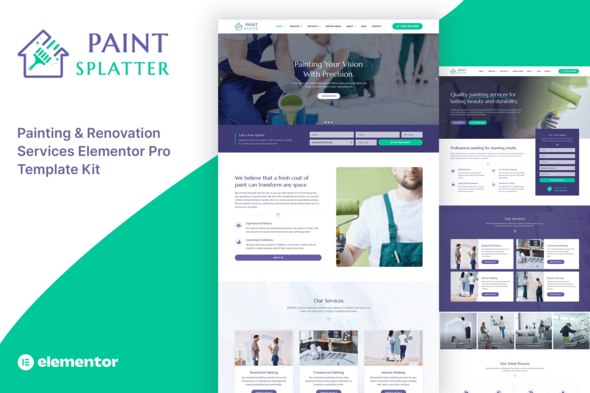
Paint Splatter - Painting & Renovation Services Elementor Pro Template Kit
Paint Splatter is an Elementor Pro template Kit designed to showcase your painting & renovation services with style. This Elementor template kit offers sleek, modern layouts specifically tailored to your painting & renovation business.
What the Paint Splatter Template Kit Includes
The kit provides page content for the Elementor page builder and is optimized for use with the free Hello Elementor theme, while remaining compatible with most themes that support Elementor. It is designed with Elementor Flexbox container and supports global styles for consistent branding.
Key Features
- Designed with Elementor Flexbox container.
- 20+ ready to use templates.
- 3 Home page layouts.
- 100% Fully Responsive & mobile-friendly.
- Global Styles included.
- Cross Browser Compatibility: Chrome, Firefox, Safari, Opera.
- Easy color & typography customization.
- SEO-friendly design.
- No coding knowledge is required.
- Lifetime free updates.
- Elementor Pro upgrade (purchase separately) is required for most templates and features (not included).
Included Templates
- Home 1
- Home 2
- Home 3
- Services
- Single Service Details
- Pricing
- Service Warranty
- Before & After Projects
- Portfolio
- Service Areas
- About
- Our Team
- Our Clients
- Testimonials
- FAQs
- Blog
- Single Blog Post
- Contact
- Header
- Footer
- 404 Page
- Block: CTA Banner
- Block: Sidebar
Required Plugins & Compatibility
- Elementor
- Elementor Pro upgrade (purchase separately) is required for most templates and features (not included).
- This template kit is not a WordPress theme.
- Template kit contains page content for the Elementor page builder. This kit has been optimized for use with the free Hello Elementor theme but may be used with most themes that support Elementor.
How to Use Template Kits
- Download your kit file from Envato and do not unzip it. If you use Safari browser you may need to ensure “Open safe files after downloading” is disabled in the browser preferences.
- Go to Settings > Permalinks and ensure Post Name is selected.
- Go to Appearance > Themes > Add New and ensure Hello Elementor is installed and activated. This will prompt you to install Elementor if you haven’t already.
- Go to Plugins and ensure Elementor and Envato Elements are installed and at the latest version. If your kit requires Elementor Pro, it must be installed now and connected to your account.
- Go to Elements > Installed Kits and click Upload Template Kit Zip (or click your kit to view it).
- Check for the orange banner at the top and click Install Requirements to load any plugins the kit uses.
- https://envato.d.pr/ughD8Q
- Click import on the Global Kit Styles first. This will setup the site settings.
- Click Import on one template at a time in the order shown. These are stored in Elementor under Templates > Saved Templates and are re-used from here.
- Creating Pages
- Go to Pages and create a new page and click Edit with Elementor.
- Click the gear icon at lower-left of the builder to view page settings and choose Elementor Full Width and hide page title.
- Click the gray folder icon to access My Templates tab and then Import the page you’d like to customize.
- The home page is set under Settings > Reading by selecting Static Front Page.
- If you have Elementor Pro, headers and footers are customized under Templates > Theme Builder.
- How to Setup Main CTA Block or Sidebar Block:
- Import the CTA Block or Sidebar Block and customize it from Templates > Saved Templates.
- Create / Open the page where the CTA Block or Sidebar Block should appear in Elementor.
- Locate the Template element in the navigator and select the block from the dropdown.
- Alternatively, you may set the CTA Block or Sidebar Block template to Global and insert the block directly into your pages from the My Templates library. For more information on Globals, see Elementor > Get Help in your admin menu.
- Blog Posts:
- Blog content is not included – you will need to add a few posts to WordPress before post content will appear in templates.
- Image License:
- This Template Kit uses demo images from Envato Elements. You will need to license these images from Envato Elements to use them on your website, or you can substitute them with your own.
- Envato Elements collection
Resources and Support
- Envato Documentation: How to use the Envato Elements WordPress Plugin (Envato Help Center).
- Elementor Documentation: For further support, go to Elementor > Get Help in the WordPress menu.
- Blog content guidance: ensure you have posts in WordPress before template rendering.
The information on this website is sourced from the
ThemeForest product page
.