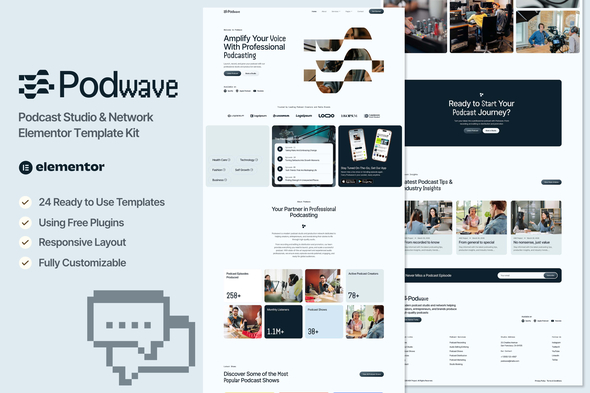
Podwave - Podcast Studio & Network Elementor Template Kit

Podwave is a modern Elementor Template Kit designed for podcast studios, networks, and content creators to launch a professional podcast website without coding. It includes 19 pages and 24 templates, built with Elementor, and supports booking, shows, episodes, and studio services for a polished online presence.
What Podwave offers
- Using Free Elementor (Elementor Pro is not required)
- Unique & Clean Design
- 19 Ready to Use Pages
- 24 Ready to Use Templates
- Fully Responsive Layout
- Fully Customizable
- Cross Browser Compatibility: Chrome, Firefox, Safari, Opera
Templates included
The kit provides a comprehensive set of templates and structural pages to cover a complete podcast website workflow.
- Global Theme Style
- Home
- About
- Services
- Service Detail
- Podcast Shows
- Show Details
- Episode List
- Episode Details
- Book Studio
- FAQs
- Career
- Career Details
- Testimonials
- Contact
- Team
- Pricing
- Blog
- Single Post
- 404 Page
- Header
- Footer
- Form Booking
- Form Newsletter
- Form Contact
How to use Template Kits
Important note: THIS IS NOT a WordPress Theme. Template kits contain design data for Elementor only and are installed via the Template Kit Import Plugin or directly through Elementor.
- Download your kit file from Envato or ThemeForest and DO NOT unzip it. If you use Safari, disable “Open safe files after downloading.”
- Go to Settings > Permalinks and ensure Post Name is selected.
- Go to Appearance > Themes > Add New and install Hello Elementor; activate Elementor if prompted.
- Go to Plugins and ensure Elementor and Template Kit Import are installed and up to date. If the kit requires Elementor Pro, install and connect it.
- Go to WordPress Dashboard > Tools > Template Kits and click Upload Template Kit Zip (or view the kit).
- Check for the orange banner and click Install Requirements to load needed plugins.
- Click import on the Global Kit Styles first to set up site settings.
- Import templates one by one in the shown order (stored in Elementor under Templates > Saved Templates).
Creating pages and importing templates
- Go to Pages, create a new page, and click Edit with Elementor.
- Open page settings (gear icon) and choose Elementor Full Width; hide the page title.
- Click the gray folder icon to access My Templates and import the page you want to customize.
- The home page is set under Settings > Reading by selecting Static Front Page.
Importing Metforms (forms)
If you have Elementor Pro, you can skip the separate Metform installation and form blocks.
- Import the Metform block templates.
- Import the page template where the form appears; right-click to enable the Navigator.
- Locate and select the Metform widget, then click Edit Form. Choose New, then Edit Form; the builder will appear.
- Click 'Add Template' and choose the imported Metform template, then click Insert (No for page settings).
- Customize as needed and click Update & Close; the form will appear in the template.
Setup Global Header and Footer
- Import the header and footer templates.
- Go to ElementsKit > Header Footer, select Header and click Add New.
- Set Entire Site, activate, and Edit Content; import the header template and update.
- Repeat for Footer.
- If you have Elementor Pro, headers and footers can be customized under Templates > Theme Builder.
Flexbox Container and features
- Ensure you have Enabled ‘Flexbox Container’ in the dashboard.
- Go to Elementor > Settings > Features to enable Flexbox.
Additional resources and guides
- Detailed Guide: YouTube playlist
- Envato Elements WordPress Plugin v2.0: Help Article
- For further support, go to Elementor > Get Help in WordPress menu.
Notes and licensing
This Template Kit uses demo images from Envato Elements. You will need to license these images from Envato Elements to use them on your website, or substitute them with your own.
Workspace reference: Envato Shared Workspace