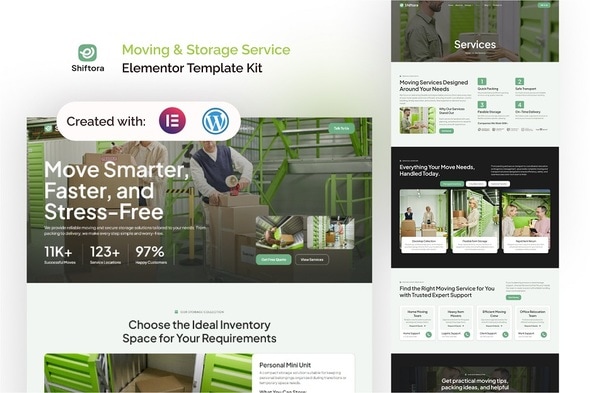
Shiftora – Moving & Storage Service Elementor Template Kit

Shiftora is an Elementor Template Kit for moving and storage businesses that helps you launch a professional website quickly with 12+ ready-made templates. It’s compatible with wordpress v.6.x, elementor v3.35.6, and elementor pro v3.35.6, and includes free updates forever.
Compatibility and Updates
- Compatible for wordpress v.6.x
- Compatible for elementor v3.35.6 & elementor pro v3.35.6
- Buy once, free updates forever
What Shiftora Delivers
Shiftora, an Elementor Template Kit designed specifically for relocation services, logistics companies, and storage providers. (Please note: this is not a WordPress theme.)
With over 12+ ready-made page templates, Shiftora provides everything you need to launch a modern and trustworthy website in minutes. From engaging homepages and detailed service pages to team introductions and transparent pricing layouts, each template is carefully crafted to reflect reliability, efficiency, and professionalism—essential values for any moving and storage service.
Shiftora is fully powered by Elementor and WordPress, allowing you to customize every section using an intuitive drag-and-drop builder. No coding knowledge is required. Whether you manage a local moving company, offer long-distance relocation, or provide secure storage solutions, this kit adapts seamlessly to your services and brand identity.
Performance and user experience are at the core of its design. The layout is fully responsive, ensuring a smooth browsing experience across desktop, tablet, and mobile devices. Clean typography, well-balanced spacing, and conversion-focused sections help visitors quickly understand your services and confidently request a quote or book your service.
Carefully tested across major browsers, Shiftora ensures consistent functionality and reliable performance for every potential customer. It’s a complete solution for moving companies and storage providers looking to strengthen their online presence with clarity, trust, and professionalism.
Templates Included
- Global Theme Style
- Home
- About Us
- Storage Details
- Personal Storage
- Career
- Facilities
- Faq
- Location
- Pricing
- Services
- Testimonial
- 404
- Single Post
- Our Blog
- Contact Us
- Header
- Footer
Suitable For
- Local & Long-Distance Moving Company
- Residential Moving Services
- Commercial & Office Relocation Providers
- Storage & Warehouse Services
- Logistics & Transportation Companies
Key Features
- Modern and Professional Layout Design
- Carefully Structured with a Consistent Design System
- 12+ Pre-Built Page Templates Ready to Import
- Fully Responsive Across Desktop, Tablet & Mobile
- Easy Customization with Drag-and-Drop Builder
- Flexible Color & Typography Controls
- Integrated with 900+ Google Fonts
- Cross Browser Compatibility: Chrome, Firefox, Safari, Opera
Required Plugins (included)
- Elementor
- The Plus Add-on
- Elementskit Lite
- Gum Elementor Kit
- Metform
How to Use Template Kits
Detailed Guide: How to Upload & Install Elementor Template Kits from Envato
For further support, go to Elementor > Get Help in WordPress.
How to Import MetForm Templates
- If you are using Elementor Pro, you can skip the MetForm plugin installation step.
- Open the page in Elementor where you want the form to be displayed.
- Open the Navigator panel to easily find the MetForm widget.
- Select the MetForm widget, then click Edit Form.
- Choose New Form, then click Edit Form to launch the form builder.
- Inside the builder, click Add Template (folder icon).
- Navigate to the My Templates tab.
- Select the MetForm template you previously imported and click Insert.
- If prompted about page settings, select No.
- After the template loads, customize the form if needed. Click Update & Close to apply the changes.
- Finally, click Update on the page to save everything.
Header Setup with ElementsKit Lite
- For users of Elementor Pro, headers and footers can be managed directly inside the Theme Builder.
- Ensure each page built with Elementor is set to Elementor Full Width under Page Layout settings.
- From the WordPress dashboard, go to ElementsKit → Header Footer Builder.
- If a setup wizard appears, proceed or skip optional steps; entering your email is not required.
- Click Add New to create a fresh header template.
- Enter a title, set status to Active, and choose Edit with Elementor.
- In Elementor, click the Folder icon to open the template library.
- Go to My Templates, insert your header (or footer) layout, adjust as needed, and Publish.
Images & Content Notice
This Template Kit uses demo images sourced from Envato Elements. To use these images on your live website, you must obtain the appropriate license from Envato Elements, or replace them with your own images.
Blog content is not included in the kit. You will need to create and publish your own posts in WordPress before blog content appears within the templates.
Envato Elements collection: Envato Elements collection.
Support and Help
For additional help, consult the Elementor help resources within WordPress or use the provided guide links above.