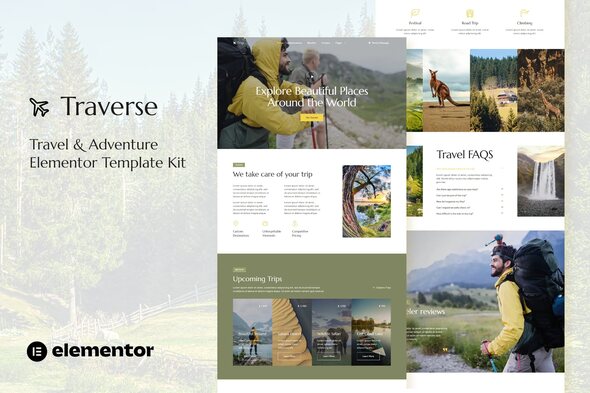
Traverse - Travel & Tour Agency Elementor Template Kit
Traverse is a professional Elementor Template Kit for tour & travel websites, designed for quick import, reuse, and compatibility with the free Hello Elementor theme for travel agencies and related services.
Features
- Elementor Free, No upgrades required
- Modern Typographic Design
- 12+ Ready to use templates
- Fully Responsive Layout
- Fully Customizable
Templates Included
- Home
- About
- Benefits
- Blog
- Contact
- Destinations
- FAQ
- Metform Contact
- Metform Subscriber
- Post
- Reviews
- Trip
- Header
- Footer
- Global Styles
How to Use Template Kits
- Install and Activate the “Envato Elements” plugin from Plugins > Add New in WordPress
- Download your kit file and Do not unzip
- Go to Elements > Installed Kits and click the Upload Template Kit button. You may also import automatically by clicking Connect Account to link your Elements subscription, then import under Elements > Template Kits.
- Check for the orange banner at the top and click Install Requirements to load any plugins the kit uses
- Click import on the Global Kit Styles first
- Click Import on one template at a time. These are stored in Elementor under Templates > Saved Templates.
- Go to Pages and create a new page and click Edit with Elementor
- Click the gear icon at lower-left of the builder to view page settings and choose Elementor Full Width and hide page title
- Click the gray folder icon to access My Templates tab and then Import the page you’d like to customize.
- If you have Elementor Pro, headers and footers may be customized under Theme Builder.
Detailed Guide
Detailed Guide
For further support, go to Elementor > Get Help in WordPress menu.
Setup Global Header and Footer in ElementsKit
- Import the header and footer template
- Go to ElementsKit > Header Footer and click Add New (if prompted with a wizard, you may click Next through it without taking any action)
- Title the header, leave Entire Site selected and toggle Activation to On
- Click the gray Edit Content button to load the builder
- Click the gray folder icon and select the header template to import, select your menu in the nav element and click Update.
- Repeat for Footer
How to Import Metforms
- Import the metform block templates
- Import the page template where the form appears and right-click to enable the Navigator
- Locate and select the Metform widget and click Edit Form. Choose New, then Edit Form. The builder will appear
- Click ‘Add Template’ grey folder icon.
- Click ‘My Templates’ tab.
- Choose your imported metform template, then click ‘Insert’ (click No for page settings).
- Once the template is loaded, make any desired customizations and click ‘Update & Close’ The form will appear in the template
- Click Update
The information on this website is sourced from the
ThemeForest product page
.