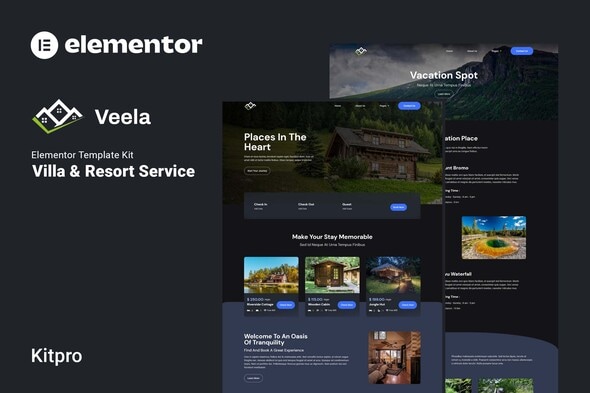
Veela - Vacation Rental & Resort Elementor Template Kit
Veela is an Elementor Template Kit designed for quickly building resort or holiday rental websites with the Elementor Page Builder. It is not a WordPress theme; Template Kits contain page content for Elementor and are optimized for the free Hello Elementor theme, while remaining usable with most Elementor-supported themes.
What Veela is and how it works
Veela provides a ready-to-use, drag-and-drop design system for creating professional, fast-loading hotel, cabin, or vacation rental sites. It focuses on no-code customization, allowing you to adjust fonts, colors, and element styling from a central location or on a per-element basis. The kit emphasizes a modern, polished look and broad compatibility with Elementor themes, enabling quick deployment without theme restrictions.
Key features
- True no-code customization with drag and drop visual builder
- Centralized font and color management with per-element fine-tuning
- Modern, professional design optimized for resort and rental websites
- Fast-loading performance considerations for better user experience and SEO
- Works with most Elementor themes for flexible deployment
Templates included
- Home
- About us
- Service
- Contact Us
- Cabins
- Single-Cabin
- Vacation Spot
- Faq
- Blog
- 404
Addons installed with kit
- Elemenskit Lite
- Premium Addons for Elementor
- Jeg Elementor Kit
- Metform
- Header & Footer Builder for Elementor
Fonts used
How to import Metform custom form and Content Block
- Import metform template – Import the template where the form appears, then edit in Elementor.
- Install and activate theme “Hello Elementor” from Appearance > Themes
- Click the Metform widget in the column where the form should be and click Edit Form.
- Select New, leave blank selected then click Edit Form button
- Click ‘Add Template’ grey folder button.
- Click ‘My Templates’ tab.
- Choose your imported metform template, then click ‘Insert’.
- Once the template is loaded, click ‘Update’.
How to Use Template Kits
- Install and Activate the “Envato Elements” plugin from Plugins > Add New in WordPress
- Download your kit file and Do not unzip
- Go to Elements > Installed Kits and click the Upload Template Kit button. You may also import automatically by clicking Connect Account to link your Elements subscription, then import under Elements > Template Kits.
- Check for the orange banner at the top and click Install Requirements to load any plugins the kit uses
- Click import on the Global Kit Styles first
- Click Import on one template at a time. These are stored in Elementor under Templates > Saved Templates.
- Go to Pages and create a new page and click Edit with Elementor
- Click the gear icon at lower-left of the builder to view page settings and choose Elementor Full Width and hide page title
- Click the gray folder icon to access My Templates tab and then Import the page you’d like to customize.
Detailed guide
For a comprehensive step-by-step, refer to the Envato Market help article: How-to guide: How to use the Envato Elements WordPress Plugin v2.0. If you need further assistance, use Elementor’s Get Help option in the WordPress menu.
How to Import Metforms
- Import the metform block templates
- Import the page template where the form appears and right-click to enable the Navigator
- Locate and select the Metform widget and click Edit Form. Choose New, then Edit Form. The builder will appear
- Click ‘Add Template’ grey folder icon.
- Click ‘My Templates’ tab.
- Choose your imported metform template, then click ‘Insert’ (click No for page settings).
- Once the template is loaded, make any desired customizations and click ‘Update & Close’ The form will appear in the template
- Click Update
How to setup header in Jeg Elementor Kit plugin
- Go to Jeg Elementor Kit menu item > Header Template
- Click Add New Header
- Add condition > All Site and click Create
- Click gray folder icon to access My Templates tab
- Insert the header template.
- Customize and Save.
Usage notes and image sourcing
This Template Kit uses demo images from Envato Elements. To use them on your website, you will need to license these images from Envato Elements or substitute them with your own.
What to know about compatibility and setup
- Veela is optimized for use with the free Hello Elementor theme but can be used with most WordPress themes that support Elementor.
- The kit’s design and templates are intended to speed up deployment for resort, cabin, and vacation rental sites.
- All template content is structured to work with Elementor’s page builder UI, enabling straightforward customization without coding.
Versioning, terminology, and terms preserved
The content preserves exact feature names and terms as found in the source, including references to:
- Elementor Page Builder
- Template Kits
- Hello Elementor theme
- Elemenskit Lite
- Premium Addons for Elementor
- Jeg Elementor Kit
- Metform
- Header & Footer Builder for Elementor
- Font Used: DM Sans, Roboto
Notes for content management and SEO
The overview and structured sections are crafted to support search intent related to Elementor Template Kits for resort and vacation rental sites. Section headings reflect the source material and include direct references to kit components, templates, addons, and usage instructions to improve relevancy and indexing for related queries.
The information on this website is sourced from the
ThemeForest product page
.